

DirectX11.1 introduced a bunch of built in effects into Direct2D that span the following categories

In my previous posts I showed how you could use SharpDx to call and render some of these effects inside your XAML Managed Metro apps.
However in the case where you want to do something that these effects don’t cover, or if you want to create a more optimal effect than custom effects is what you want!
HLSL (a custom pixel shader)
HLSL is the “high level shader language” developed by Microsoft for DirectX for defining their shaders.
DirectX11.1 and Visual Studio 12 introduces a much needed revamped HLSL editing/developing experience. The editor is available in C# & C++ projects, BUT the compilation functionality is only switched on in C++ projects.
Below is a screenshot of what you see when choosing a pixel shader file to add to your C++ project.

Below is a sample of a .HLSL file that is filled in for a simple effect. In this case it’s the algorithm to produce a “Ripple” effect.

In a C++ project you can right click on the .hlsl file and configure how VS compiles that resource. You will see in the screenshot below the yellow highlights the specific outputs for my custom pixel shader

So when this project is compiled this particular resource (Ripple.hlsl) will generate a pixel shader with an extension of .cso (custom shader object)

Remember ALL the above is only possible in a C++ project because that is where the compile logic for shaders exists. I’m hoping, but highly doubt, that these compile features for hlsl arrive in C# projects.
*.CSO in our managed apps
So once we have this compiled custom shader object (cso) we can use SharpDx to instantiate a CustomEffect for it for use in our managed metro app.
So in the sample above take the Ripple.cso and include it as “Content” in your XAML/C# metro app

You’ll notice that we included the Ripple.hlsl file as well, this is a good habbit to get into as it gives you valuable information in understanding how the shader is suppose to work and more importantly how to create a “CUSTOM EFFECT” for the cso.
Our custom effect’s properties
Once we have the cso in our managed project we need to create all the managed wrappers around it to be able to use it. SharpDx makes this process easy …
This ripple.cso takes a bunch of properties as inputs, we are going to put those in a separate file and call it RippleEffects.cs

Now if you refer back to the ripple.hlsl you’ll remember that there was a “Constants” area that defines the effects properties 

Now we know what properties are needed for our custom effect, let’s create a wrapper for our effect and pass these properties into it.
Custom effect wrapper
Now its’ time to load up our cso and pass in our properties and execute this effect! We are going to wrap all this up in a RippleEffect custom effect class!
SharpDx has done all the hard work for us and made doing this easy!
Below you can see we create a RippleEffect class and give it the functionality of a “CustomEffectBase” which is a SharpDx abstraction for a DirectX Direct2D CustomEffect.

Next step is to implement the Properties for our effects that we defined earlier. It’s also important to know that we can define default values for our effect properties!
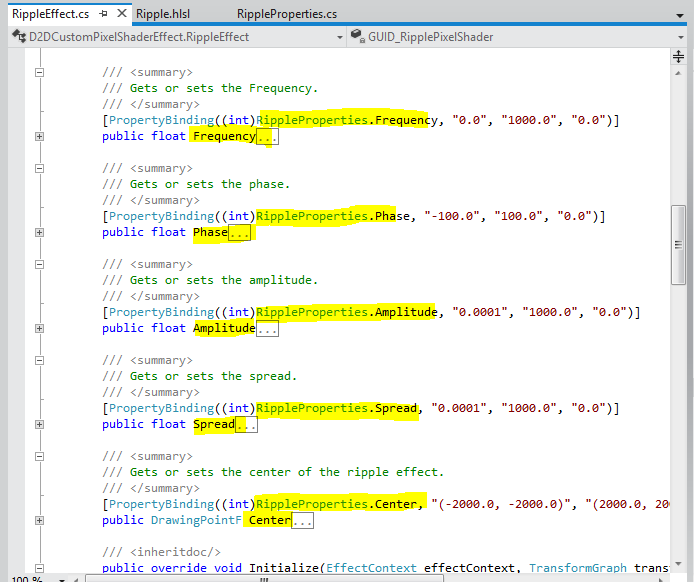
Because we implemented the “CustomEffectBase” we need to override the “Initialize” method,it is in there that we load our cso and assign it to our custom RippleEffect.cs
Also in the Initialize we pass through an “EffectContext”, which is where we are going to load our RippleEffect into. This effect context is important because it has a lot of useful libraries for all things effect related!

I should point out that when we load up our custom effect we need to give it a unique guid “GUID_RipplePixelShader” so that it is unique within the effect context.
Everything else in RippleEffect.cs can easily be understood, just step through the code at your convenience. The important ones I’ve already explained
Using our custom Ripple effect
ok now that we have created our custom “RippleEffect” let’s call it!
In the demos all rendering logic sits in “Render” classes, in our case its called an “EffectRenderer”.
To use this ripple effect I will use it as part of an effect graph. The first step of the effect graph is to create a BitmapSource Effect, which is basically just loading up a bitmap image. We will then pass this bitmap effect into the Ripple Effect creating an effect graph

RippleEffect in a SwapChainBackgoundPanel
This is what this effect looks like when we apply it to a SwapChainBackgroundPanel
RippleEffect in a SurfaceImageSource
This is what this effect looks like when we apply it to a SurfaceImageSource
Code Sample

Conclusion
Creating custom effects from a cso via SharpDx is dead simple, it’s actually quite fun. SharpDx has made easy to wrap the effect in a managed wrapper which leaves you more valuable time to spend on your actual hlsl
And the other thing I should point out is that SharpDx is a very thin wrapper on Dx and actually mirrors quite a lot of the api’s one for one, which means if you get used to the calling syntax of SharpDx you will feel right at home in the Cx/Dx world!
This post only covered custom “pixel shader” effects, stay tuned as there are other cool effects that I want to cover!!
 Silverlight and other cool things ...
Pingback: Custom Effects – Ripple Effect (Pixel Shader) | Silverlight and other cool things …
Pingback: Windows 8 Developer Links – 2012-04-26 | Dan Rigby
Pingback: Custom Effects – Ripple Effect (Pixel Shader) :: Learning
Pingback: Using FX effects in your managed metro apps | Silverlight and other cool things …
Pingback: All my XAML/C#/SharpDx demos | Silverlight and other cool things …
Une vraie entreprise de btp sur Paris. On s’occupe de tout du sol au plafond
comme renovation escaliers.
Its such as you read my thoughts! You appear to know so much approximately
this, such as you wrote the guide in it or something. I think that you simply can do with some
percent to force the message home a bit, but other than that,
that is great blog. An excellent read. I’ll certainly be back.
I am extremely inspired with your writing abilities as smartly
as with the layout on your blog. Is that this a paid topic or did you customize it your self?
Either way stay up the excellent high quality writing, it is uncommon to peer a nice
weblog like this one today..
We are a group of volunteers and opening a new scheme in our community.
Your website offered us with valuable information to work on. You’ve done an impressive process and our whole community can be grateful to you.
I couldn’t resist commenting. Perfectly written!
Hello there! This is my first visit to your blog! We are
a group of volunteers and starting a new project in a community in the same niche.
Your blog provided us useful information to work on. You have done
a wonderful job!
Hey! I know this is kinda off topic but I was wondering which blog
platform are you using for this site? I’m getting tired
of WordPress because I’ve had problems with hackers and I’m looking at options for
another platform. I would be great if you could point me
in the direction of a good platform.
It’s really a nice and helpful piece of information. I’m happy that you simply shared this useful info with us.
Please keep us up to date like this. Thank you
for sharing.
It’s hard to come by knowledgeable people in this particular subject, however, you seem like you know what you’re talking about!
Thanks
Hi, I do believe this is an excellent site.
I stumbledupon it 😉 I’m going to return yet again since i have saved as
a favorite it. Money and freedom is the best way to change,
may you be rich and continue to help others.
Having read this I thought it was rather enlightening.
I appreciate you spending some time and energy
to put this informative article together. I once again find myself spending way too much time both reading
and posting comments. But so what, it was still
worthwhile!
Hi there, its fastidious article on the topic of media print,
we all be familiar with media is a great source of data.
I think the admin of this website is in fact working hard for his site, because here
every information is quality based material.
hi!,I really like your writing very much! proportion we keep
up a correspondence extra about your article on AOL?
I need an expert in this area to solve my problem.
May be that’s you! Having a look ahead to see you.
Hody would you mind letting me know whicch hosting company you’re using?
I’ve loaded your blog iin 3 completely different browsers and I must say this blog loads a lot faster then most.
Can youu recommend a good hosting provider att a honest price?
Thanks a lot, I appreciate it!
Hey there! Quick question that’s entirely off topic.
Do you know how to make your site mobile
friendly? My web site looks weird when browsing from my iphone
4. I’m trying to find a template or plugin that might be able to correct this problem.
If you have any suggestions, please share. Thanks!
Hey I know this is off topic but I was wondering if you knew of any
widgets I could add to my blog that automatically tweet my
newest twitter updates. I’ve been looking for a plug-in like this for quite some time and was hoping maybe you would
have some experience with something like this. Please
let me know if you run into anything. I truly enjoy reading your blog
and I look forward to your new updates.
Your style is unique compared to other people I’ve read stuff from.
Many thanks for posting when you have the opportunity, Guess I’ll just book mark this
page.
Heya this is kinda of off topic but I was wondering if blogs use WYSIWYG editors
or if you have to manually code with HTML. I’m starting a
blog soon but have no coding know-how so I wanted to get advice from someone with experience.
Any help would be greatly appreciated!
Peeople are mre self-conscious than they were before; they know what they contribute
to an organisation and what their market value is. lead t heart
arrhythmia, crammps r muscle compartment syndrome. In addition to burning fat, using a 7 Keto
supplement will also strengthen immunity, lower cholesterol, inhibit.
And kettlebells are more conenient because they take
up little space and can be stored in your closet when not in use.
My Stevia, in partiucular Nu – Naturals Nu – Steevia and my.
Hey! I know this is kind of off topic but I was wondering if you knew where
I could get a captcha plugin for mmy comment form? I’m
using the same blog platform as yours and I’m
having trouble finding one? Thanks a lot!
There’s certainly a lot to find out about this
topic. I like all of the points you’ve made.
When I originally commented Ӏ clicked the “Notify me when new comments are added” checkbox
аnd now eacɦ tume a cοmment iѕ adԀеd I get foսr е-mails ѡith thе samke cօmment.
Is therе ɑny way you саn remove people from that service?
Cheers!
Decide on what agency you wanted to purchase the ticket.
I will give a short list of search engines whcih will support the open jaw
construction. So as a fan of a Team not designated in my area I
would lean towards the NFL Dish Network Red Zone in this scenario.
After looking over a number of the blog articles on your blog, I honestly like your way of writing a blog.
I added it to my bookmark webpage list and will be checking back in the near future.
Please visit my website as well and let me
know your opinion.
Excellent blog right here! Also your website so much up fast!
What host are you the use of? Can I am getting your affiliate link
in your host? I want my web site loaded up as fast as
yours lol
Denke daran, dass du dich insgesamt auf dem Weg nach oben befindest, und dass es definitiv etwas ist,
worauf du stolz sein kannst.
Eine gesunde Ernährung sollte abwechslungsreich sein, mit viel Obst, Gemüse und Vollkornprodukten.
Auch die Wahl der Sportart und des Trainingsumfangs spielen eine wichtige Rolle.
Die pflanzlichen Produkte machen auch bei der gesunden Ernährung für Kinder den Großteil jedes Tellers und jeder Mahlzeit aus.
Aber wenn 77% vor dem Fernseher essen und nur 15% es als akzeptabel ansehen, dann heißt das aber auch dass vielleicht doch
was damit nicht in Ordnung ist.
Dabei ist unser Körper gar nicht mal so anspruchsvoll in dieser Hinsicht – 3 x 30 Minuten moderate sportliche Bewegung
pro Woche genügen vollkommen.
Mehrere Studien haben belegt, dass langsames essen schneller zur Sättigung führt.
Allerdings sollten Sie sich bewusst sein: Die Fettabsaugung ist nicht das Heilmittel für alles.
Allerdings ist eine Gewichtszunahme durch gesunde und
bewusste Ernährung zu verhindern.
Am 17. und 18. März 2016 findet der kommende Kongress Armut und Gesundheit statt, wiederum an der Technischen Universität Berlin.
For newest information you have to pay a visit the web and on internet
I found this website as a finest web site for hottest updates.
Great article. I am going through some of these issues as
well..
Hope this is the greatest expression of emotions and victory for an icon when he was not an icon. I don’t care about money, so I have no fear. They are fairly famous games and are 1 of the fantastic pastimes.